Microphone Not Working: No Playback Checklist
If the game cannot hear you or playback is silent, start with permission, the right input, and a moving waveform. Then test playback volume.
When The Choicer Voicer homepage cannot hear you, or a take plays back silent, fix permission and input first. Watch the waveform before you change anything else.
Quick checklist
- Reload the game page.
- Choose Allow when the browser requests microphone access.
- Check that the browser is using the microphone you expect.
- Close another app if it is holding the microphone.
- Speak a short test line and watch for waveform movement.
- If the take is silent, reconnect the microphone and reload once more.
Match the symptom
| What you notice | What to try | Why it helps |
|---|---|---|
| No permission prompt | Open the site controls beside the address bar and allow the microphone | A previous choice may be remembered |
| No waveform | Select another input, reconnect the mic, then reload | The browser may be listening to the wrong device |
| Voice disappears mid-line | Replay that prompt and record again | A short input interruption does not require a new session |
| Other people are audible | Keep the room quiet while Record is active | The microphone captures nearby speech too |
| Playback is quiet | Check the browser, game, and device volume | Recording and playback levels are separate |
Permission was blocked
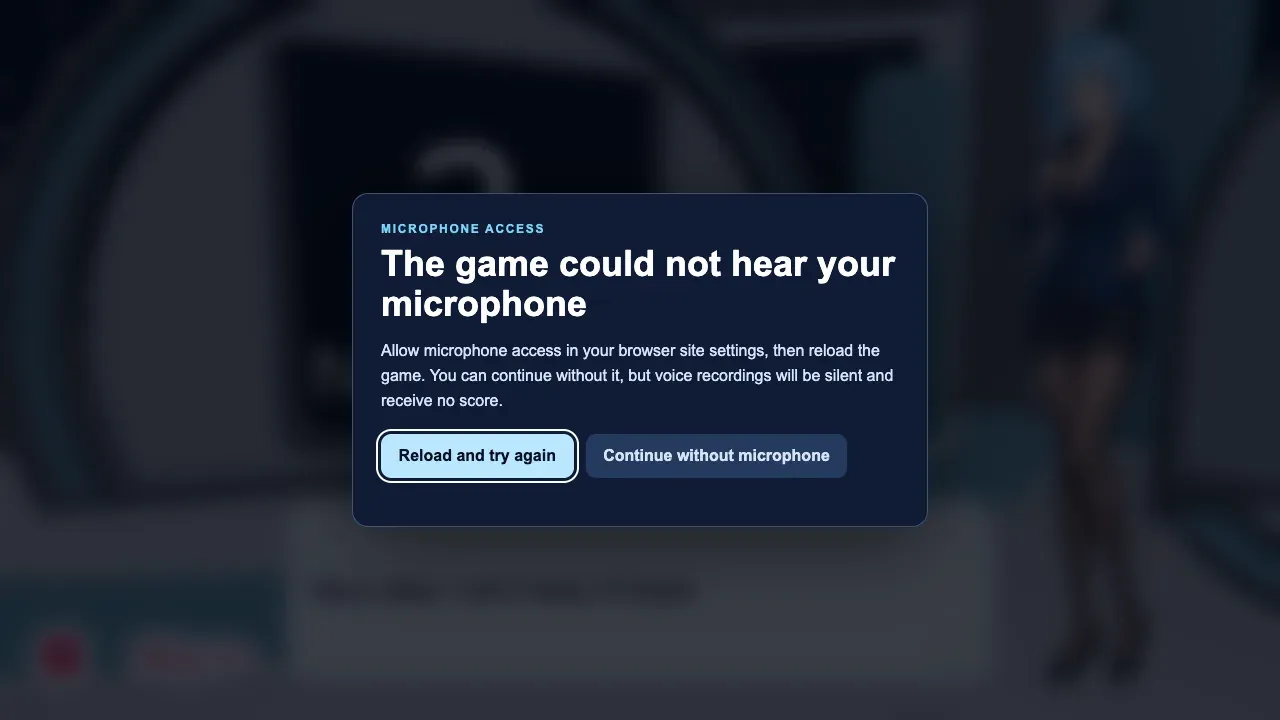
Use the site-control icon beside the browser address, change Microphone to Allow, and reload the page. If your browser still refuses access, check its system privacy settings and confirm that the browser itself can use the microphone.
The game does not need a name or account to request audio permission. You can revoke permission at any time from the same browser control.
A single line failed
Use Clip again and redo only that prompt. Restarting the full performance is useful only when several lines are missing.
FAQ
Why can the browser hear the wrong microphone?
It may remember a webcam, headset, or virtual input. Choose the intended device in the browser or system sound settings, then reload.
Why should I use headphones?
Headphones stop the prompt audio from entering the microphone and becoming part of your take.
Is my microphone required?
Yes for recording gameplay. You can still refuse permission, but the core voice loop will not work until access is allowed.
Why can’t I hear my voice after a take?
Check playback volume on the device, the browser tab, and the game. A moving waveform means the mic heard you; silent playback is a volume or output problem.
The game is not picking up my microphone. What should I check first?
Reload, choose Allow, pick the correct input, and watch the waveform. If it stays flat, another app may be holding the device. A short test in Settings confirms the input before you start a mode.
Playback is silent. Is the take empty?
If the waveform never moved, the take is empty. If it moved but you hear nothing, raise playback volume and replay the line.
The complete game is free to play on The Choicer Voicer homepage . There is no installer.